
How to Autofill Job Applications Without Errors
Learning to autofill job applications properly saves an hour per application, but done carelessly it puts the wrong date, the wrong phone format or a duplicated address into the database the recruiter searches. The goal when you autofill job applications is speed on the typing and full attention on the review. Autofill should do the copying; you should do the checking and the submitting. This guide covers where autofill breaks, how to answer eligibility questions once instead of forty times, why nothing should ever auto-submit, and the field-by-field review that takes five minutes and prevents most errors.
TL;DR: Use autofill for the repetitive typing: contact details, work history, education, eligibility answers. Then read every field before you submit, because autofill fails predictably on dates, phone formats, duplicated fields and drop-downs. Never let a tool submit for you. Keep one set of eligibility facts and reuse it. Check the resume attached is the tailored version.
Why application forms take so long
Most portals ask you to upload a resume and then type the same information into fields: each job title, employer, start and end date, each degree, your address, your phone. The fields exist because the parser's reading of your resume is imperfect, and because recruiters search the fields, not the file.
A typical form has 40 to 80 fields. Typed by hand, it takes 30 to 60 minutes. Done for five applications a week, that is most of a working day spent retyping facts that have not changed. That is the time autofill returns to you, and it is why the tool is worth using despite its failure modes.
Where autofill breaks
Autofill tools read your stored profile and write it into fields they recognize by label. They fail in predictable places.
- Dates. A form wants "MM/YYYY", the tool writes "March 2021", and the field either rejects it silently or stores something wrong. Month-only and year-only fields are the most common failures.
- Phone formats. Some fields want digits only, some want a country code, some split the number into three boxes. A number with brackets or spaces can be truncated.
- Duplicated fields. Address line 2 filled with the same text as line 1; a "current employer" field filled with a past one; the same job written into two work history blocks.
- Drop-downs. "Country", "State or Province" and "Degree level" are lists, and the tool must match your text to an option. "BC" may not match "British Columbia"; "Bachelor's" may not match "Bachelor of Science".
- Unlabelled or custom fields. A field the tool does not recognize is left empty or filled with the nearest guess.
- The resume itself. Some tools attach the profile's default resume, which may not be the version you tailored for this posting.
None of these is a reason to avoid autofill. All of them are reasons to review before submitting.
Answer eligibility once, reuse it everywhere
Nearly every application asks the same eligibility questions: are you legally authorized to work in this country, do you require sponsorship now or in the future, are you willing to relocate, what is your notice period, what are your salary expectations. Answering them fresh forty times invites inconsistency and rushed mistakes.
Write your answers once, in a private note or in your autofill tool's profile, and reuse them. Review them when your situation changes. Two rules:
- Be exact about authorization and sponsorship. These are knockout questions, screened automatically. Answer as the law and your documents say, not as you hope.
- Never answer demographic questions through autofill. Questions about gender, ethnicity, disability or veteran status are voluntary and should be answered by you, deliberately, or skipped. A tool should leave them alone.
A fictional example. Tomas Herrera, a permanent resident, stores "Yes" to work authorization, "No" to sponsorship, "Four weeks" notice and "Open to hybrid within Metro Vancouver" for relocation. Every form gets the same true answers, and he spends his review time on the fields that vary.
Never auto-submit
Some tools offer to submit applications for you, in bulk, to many postings. Do not use them. Three reasons:
- You cannot review what you did not see. Every failure mode above goes straight to the recruiter.
- Volume without tailoring lowers your ranking. Each application competes against tailored ones for the same role. Fifty automatic applications are fifty weak ones.
- Employers notice. Identical applications across many roles at one employer, or an application that ignores the posting's instructions, read as spam. Some portals detect automated submission and flag or block it.
The right tool fills the form and stops. You read it and press submit.
The five-minute review before submit
After autofill and before submit, walk the form top to bottom.
- Contact block. Phone digits, email spelling, address on one line each. Fix any duplicated line.
- Work history. For each job: title, employer, start month and year, end month and year or "current". Compare to the resume you attached. Delete any duplicated block.
- Education. Degree level drop-down matches your credential. Graduation year present.
- Drop-downs and radio buttons. Country, province, work arrangement, how you heard about the role. Autofill often leaves these on a default.
- Eligibility questions. Read each one twice. Confirm the answer matches your stored facts.
- Attachments. Open the attached resume. Confirm it is the version tailored to this posting and, if there is a cover letter, that it names this company.
- Free-text fields. Anything the tool wrote in a "tell us more" box should be read in full and edited to this posting.
Only then press submit. Our job application checklist covers the wider set of checks, including saving the posting text.
Different portals, different traps
Each portal family has its own habits, covered in our guide to applying through Workday, Greenhouse and Lever. In brief: multi-step portals that require an account tend to parse your resume into a profile and then ask you to correct it, so the review is essential. Single-page forms tend to have fewer fields but more custom questions, which autofill cannot answer for you. In both cases the pattern is the same: fill, review, submit.
Keep the record
Once submitted, record the application: the posting text, the resume version attached, the date and the portal. Autofill makes it possible to apply faster, and faster applying makes the record more important, not less, because the interview will come from an application you barely remember completing.
How TrinityTalent helps
TrinityTalent's Chrome extension fills application forms on Workday, Greenhouse, Lever, iCIMS and Taleo from your resume and your stored profile, including the eligibility facts you set once, and then stops. Every field is there for you to review, and you press submit yourself; the extension never submits, never applies in bulk, and never answers demographic questions on your behalf. That design is deliberate: nothing is ever sent or submitted without you.
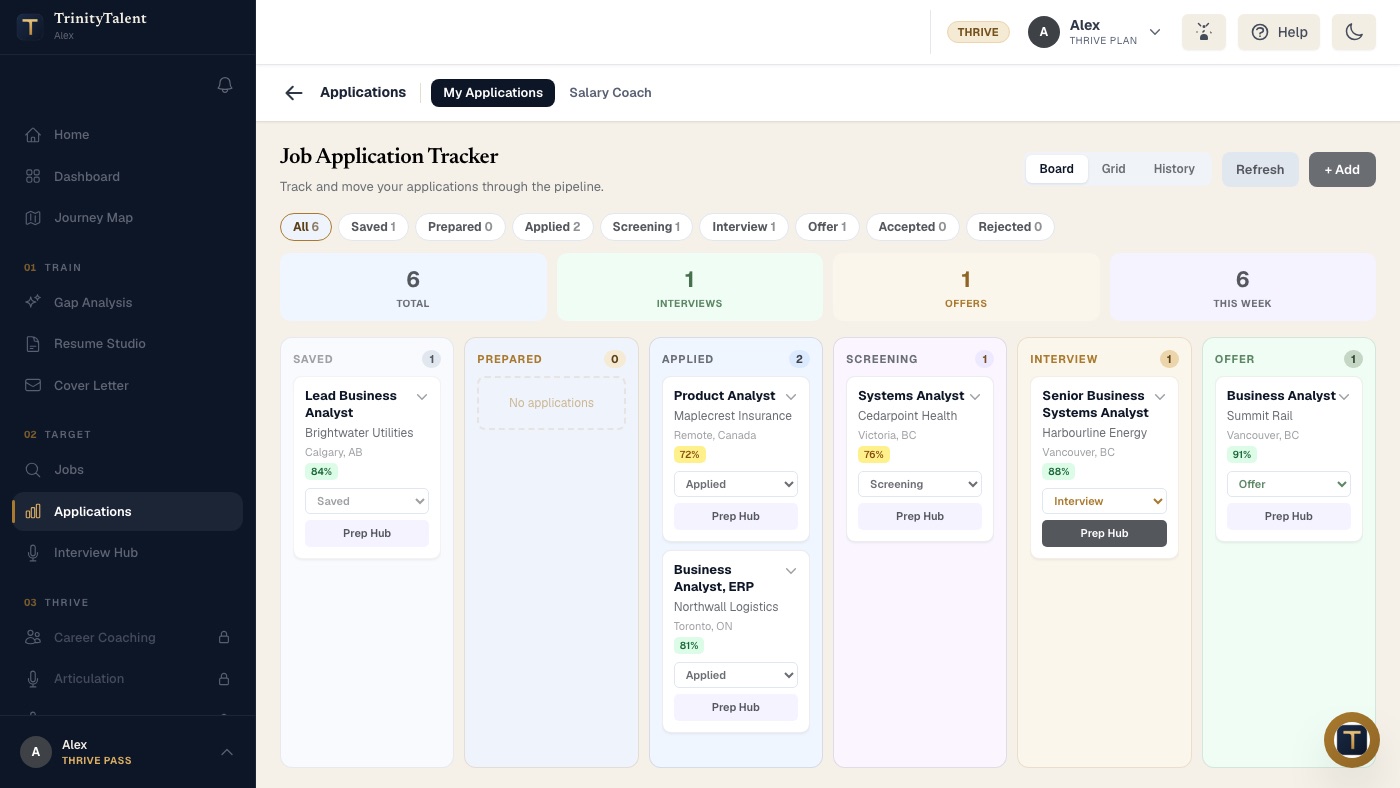
The resume it works from is the one in the free builder, so the version attached is the one you tailored to the posting with the Match tab. The Application tracker records the posting text and the version sent with each card, so the faster you apply, the more complete the record stays. Resume editing and the on-device Check are free while the product is in beta.
Frequently asked questions
Is it safe to autofill job applications?
Yes, if you review every field before submitting. Autofill is reliable for contact details, work history and education, and it fails predictably on dates, phone formats, duplicated fields and drop-downs. Use it to do the typing, then spend five minutes reading the form top to bottom before you press submit.
Should I let a tool submit job applications for me?
No. You cannot review what you did not see, so every autofill error goes straight to the recruiter. Bulk automatic applications are untailored, so they rank below tailored ones, and identical applications across many roles read as spam to employers. Fill with a tool, submit by hand.
Why does autofill get dates wrong on job applications?
Forms use many date formats: month and year, year only, a numeric "MM/YYYY", or separate drop-downs. A tool writing "March 2021" into a field that expects "03/2021" may be rejected silently or stored incorrectly. Always check start and end dates for each role against the resume you attached.
Should I answer diversity questions with autofill?
No. Questions about gender, ethnicity, disability or veteran status are voluntary and separate from the hiring decision. Answer them yourself, deliberately, or choose the option to decline. A well-designed autofill tool leaves these questions untouched, and you should not use one that fills them automatically.
Put this into practice
Install the free Chrome extension, fill your next Workday or Greenhouse form from your resume, review every field, and press submit yourself.
Tailor your resume to a posting